Key takeaways
- Design files are big, linked to each other and opened by several people at once, which is exactly what consumer cloud sync handles worst.
- For most studios the right answer is both: fast wired storage in the office for active CAD, BIM and rendering work, and the cloud for documents, presentations and remote access.
- Snapshots and previous versions on the server end the daily question of who overwrote which file.
- RAID is not a backup; a storage system needs its own local backup, an offsite copy, and one copy ransomware cannot reach.
- I set up, size and look after storage for design firms in Dallas as one project, including the network and cabling behind it.
The short answer: who sets up shared storage and backups for a design firm?
I do. I am Anthony Omini, owner of Cross River Tech in Dallas, and setting up storage for architecture and interior design firms is a project I take on regularly: choosing between an office server, a NAS and the cloud, sizing it for the files you actually produce, wiring it fast enough that Revit and large Photoshop files do not crawl, giving your team a sane way to recover an overwritten file, and backing it all up somewhere safe. I plan it and install it myself, and I stay your point of contact while my team handles the routine monitoring afterwards.
The short version of my advice for most studios is this. Keep active project files on fast, wired storage in the office, because CAD, BIM and rendering files behave badly over the internet and worse over sync clients. Use the cloud for everything else: proposals, presentations, contracts, photos you want on your phone, and files people need from home or a job site. Then back up both, including the cloud, to a place that nothing in the office can touch.
The rest of this article explains why design storage is different, how I choose between the options, what versioning and backups should look like, and how I size the network around it. If your studio is already past the point of frustration, tell me what you run and how much data you have and I will send back a recommendation. For the wider picture of how I support studios, see IT support for architecture and interior design firms in Dallas.
What makes a design firm's storage different from an ordinary office?
A law firm's shared drive is thousands of small documents that one user opens at a time. A design firm's is the opposite in every way, and file sharing that works fine for a law firm falls apart in a studio. Here is what is different:
- Files are large. A layered Photoshop presentation board, a SketchUp model with textures, a Revit central file, a rendered animation, a folder of installation photos from a job site. Individual files run to hundreds of megabytes and gigabytes, and projects run to tens or hundreds of gigabytes.
- Files link to each other. AutoCAD Xrefs, Revit links, SketchUp components, InDesign placed images. Move a folder and a drawing opens with missing references. Storage has to keep paths stable.
- Several people open the same thing at once. Revit worksharing depends on a central model that everyone synchronizes with. That only works reliably on a proper file server with real file locking.
- Old projects never really close. A client comes back after several years wanting the same finishes. Archives have to be findable and openable, not on a drive in a drawer.
- Latency hurts more than bandwidth. A designer orbiting a model that lives across a slow link feels every millisecond. Wi-Fi and internet sync add exactly the kind of delay that makes software feel broken.
Storage for a studio therefore has to be fast on the local network, honest about file locking, stable in its folder structure, big enough to hold years of projects, and backed up in a way that understands large files. Most of the frustration I hear from design firms in Dallas comes from storage that meets one or two of those requirements and quietly fails the rest.
On-prem server, NAS, or cloud: which fits your studio?
There are three families of answer, and a fourth that combines them. I have set up all of them and each has a place. What matters is matching the option to how your team actually works.
| Option | Best at | Weak at | Typical fit |
|---|---|---|---|
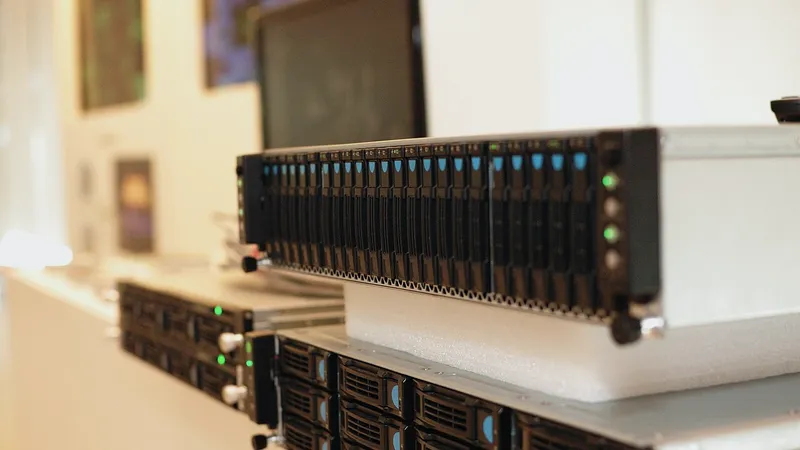
| Business NAS in the office | Fast wired access, snapshots, simple permissions, good value per terabyte | Remote access without a VPN; running line-of-business applications | Studios of roughly 3 to 25 people whose main need is fast project storage |
| Windows file server in the office | Everything a NAS does plus domain integration, hosting applications, finer control | Higher cost and more maintenance than a NAS | Firms that also run server-based software or have more complex permission needs |
| Cloud file storage (SharePoint, OneDrive, Google Drive, Dropbox, Box) | Access from anywhere, sharing with clients and consultants, no hardware | Large linked files, Revit central models, file locking, latency | Documents, presentations, photos, client sharing, remote and hybrid teams |
| Cloud collaboration for BIM (Autodesk Docs and similar) | Revit worksharing across offices and consultants | Cost per user; everything not Revit | Multi-office firms and projects with many outside consultants |
| Hybrid: office NAS plus cloud | Speed where it matters, reach where it matters | Needs clear rules about what lives where | Most studios I work with |
For a typical Dallas studio my recommendation lands on the hybrid row: a business-grade NAS with SSD or SSD-cached storage in the office for active projects and archives, connected to the switch at 10 Gb, and Microsoft 365 or Google Workspace for documents, presentations and anything shared with clients. Firms that need Revit worksharing across locations add Autodesk's cloud collaboration for those models specifically. The rules about what lives where are simple and written down, and I explain them to every new hire so the system stays tidy. I also cover how storage speed affects the workstations themselves in AutoCAD and Revit workstation support.
Why cloud sync alone fights with CAD and BIM files
Every few months a studio asks me whether they can just put everything in Dropbox or OneDrive and skip the server. I understand the appeal. But sync clients were designed for documents, and they cause a specific set of problems with design files that no setting fully fixes.
The first is locking. When two designers open the same AutoCAD drawing from a synced folder, neither one is really locked out, and the sync client later has to guess which copy wins. You end up with conflicted copies, or worse, silent loss of an afternoon's work. A Revit central model on a synced folder is the classic disaster: the model gets corrupted because the sync client and Revit are both writing to it. Autodesk is explicit that central models do not belong in consumer sync folders, and the cloud answer they built for that is a separate product.
The second is latency and size. Opening a 2 GB Photoshop file that has to be downloaded first, or saving it and watching the upload bar, kills the rhythm of design work. Sync clients also index and hash every changed file, which makes a workstation feel busy for no reason after every save.
The third is references. Linked files rely on paths, and paths in synced folders differ by user name and by whether a file is downloaded or a placeholder. Missing Xrefs and broken links follow.
None of this means the cloud is bad. It means active CAD, BIM and heavy Adobe work belongs on fast local storage, and the cloud is for the rest. Where a studio genuinely needs Revit shared across offices or with outside consultants, the purpose-built cloud BIM tools do it properly, and I will set those up alongside the office storage rather than instead of it.
Versioning: who overwrote my file, and how snapshots fix it
The question I hear most from studio managers is not about speed. It is: somebody saved over the client's approved version, can you get it back? On a bare shared drive the honest answer is often no. On storage set up properly, the answer is yes, in a couple of minutes, and often the designer can do it without me.
The mechanism is snapshots. A business NAS or Windows file server can take a snapshot of the whole volume on a schedule, say every hour during the day and once a night, and keep them for weeks. A snapshot records the state of every file at that moment without copying the data, so it costs very little space. When someone needs yesterday's version of a floor plan, they right-click the file, choose the previous version, and it is back. The overwriting was never permanent.
Snapshots also happen to be a strong first line against ransomware, because encrypted files simply get rolled back to the pre-infection snapshot. That does not replace a backup, but it turns many incidents from a crisis into a nuisance.
Alongside snapshots I set up a folder structure and permissions that make sense for design work: one folder per project with a consistent set of subfolders, an archive area that is read-only once a project closes, and a clear separation between working files and issued deliverables. Permissions stay simple, because complicated permissions are what people work around. The result is that the studio stops emailing files to itself as a way of keeping versions, and stops keeping a dozen copies of the same model with dates in the file names.
Backing up the storage: RAID is not a backup
A NAS with mirrored drives feels safe, and it does protect against one drive dying. It does nothing about a deleted folder, a corrupted model, a ransomware infection, a power surge that takes out the whole unit, or a theft. RAID keeps the system running; a backup lets you get data back. Every storage system I install gets a real backup plan, and it follows the same shape I use for every client.
- Local backup. A second device in the building, on separate credentials, that receives a nightly copy of the whole project volume. Restores from it are fast, which matters when the data is measured in terabytes.
- Offsite copy. Cloud backup storage outside the building, updated nightly with only the changes. With design volumes this is sized carefully, because pushing terabytes over an office internet connection takes time; the first copy is seeded from a drive if the volume is large.
- A copy ransomware cannot reach. Cloud storage with an immutability lock that prevents deletion for a set period, or a rotated offline drive. If an attacker gets admin credentials, this is the copy that saves the firm.
- The cloud side too. Microsoft 365 or Google Workspace files and mail get a separate cloud-to-cloud backup, because retention in those platforms is not a backup you control.
Retention for a design firm is long. Projects can come back years later, and drawings can matter in a dispute long after handover. I keep daily versions for a rolling window, monthly versions for years, and a permanent archive copy of each closed project. And I test restores on a schedule, with a note to you each time, because a backup that has never been restored from is a hope, not a plan. All of this sits inside my cybersecurity, backup and disaster recovery service.
Sizing the storage and the network around it
Sizing is where studios most often under-buy, because they size for today's data and forget that design data only grows. My rule is to look at how much the firm produced in the last year, allow for growth as the team and the renderings get bigger, and buy for at least three to five years of that, with room to add drives. Storage is inexpensive compared with the disruption of migrating to a bigger box in the middle of a deadline.
Speed matters as much as space. A NAS full of large-capacity mechanical drives is fine for archives and terrible for a designer saving a large model every few minutes. The answer is SSD storage for the active project volume, or at least SSD caching in front of the mechanical drives, so the files people touch every day come off flash.
Then the network, which is the part most often ignored. Rules I follow:
- The storage connects to the switch at 10 Gb. This is a small cost at purchase time and removes the bottleneck that otherwise makes five designers queue behind each other.
- CAD and rendering workstations are wired at 1 Gb minimum, 2.5 Gb where the switch and cabling allow it. Nobody edits models over Wi-Fi.
- The cabling was tested. A badly terminated run negotiates down or drops packets and looks exactly like a slow server.
- The storage sits on a battery backup and shuts down cleanly in a long outage, because sudden power loss on a busy volume is how file systems get damaged.
Because I run cabling and set up switches myself through the data cabling and IT room setup service, I can make sure the network matches the storage instead of finding out afterwards that a 10 Gb NAS sits behind an old switch.
Remote and hybrid access to project files
Designers are not always at their desks. Site visits, client meetings, showroom trips and work-from-home days all mean someone needs a file when they are not on the office network. A hybrid setup handles this without compromising the fast local storage.
For documents, presentations and photos, the cloud side does it: those files live in Microsoft 365 or Google Workspace and open from a laptop, a tablet or a phone anywhere. For heavy project files, I set up a VPN into the office so a laptop can reach the NAS securely, with the honest caveat that opening a huge model over a home connection will be slow, and for real design work from home the better answer is remoting into the office workstation, which keeps the heavy lifting on the fast network. For Revit shared with outside consultants, the cloud BIM tools cover it.
Sharing with clients deserves its own rule. Emailing large files fails, and public file-sharing links live forever. I set studios up with client-sharing folders that expire, are password protected where appropriate, and are separate from the internal project volume, so a client never has a link into your working files. I cover the day-to-day realities of laptops, showrooms and site visits in the article on IT for interior design studios in Dallas.
What ties it together is that every route into the storage uses the same accounts, with multi-factor authentication turned on, and no forgotten open port on the firewall. Convenience and security are not in conflict here; a badly set up remote access is usually both slow and dangerous.
What I set up, and what it costs
A storage project with me runs like this. A short conversation about how many people you have, what software you run, how much data you hold and how fast it is growing. A written recommendation with the option I think fits, why, and what it will cost in hardware, subscriptions and my time. Then the work: hardware ordered and built, the folder structure and permissions created, snapshots scheduled, the backup chain set up and the first restore tested, the network checked or upgraded, and the data migrated from wherever it is now at a time that does not stop the studio. The last step is a short walkthrough with your team so everyone knows where things live and how to get an old version back.
Hardware cost is driven by capacity, whether the active volume is on flash, and whether you need a Windows server rather than a NAS. Subscriptions are driven by how much you back up offsite and by your cloud platform seats. My time is either part of the monthly fee, if the studio is on my managed IT plan, which includes managed backup and looks after the storage from then on, or billed as a one-time project at my published hourly rates: $100 per hour remote and $150 per hour onsite during business hours, with a one-hour minimum. The managed plan is quoted per user or per device after a short conversation and is month-to-month.
I work with studios across Dallas and the metroplex, and much of the configuration is done remotely, with onsite visits for the physical install and migration. If your shared drive is full, slow, or has just lost someone's work, get in touch and tell me what you are running. I will give you a straight answer about what to keep, what to replace and what it will take.
Questions people ask
Who sets up file servers for architecture firms in Dallas?
Cross River Tech does. I am Anthony Omini, the owner of a small managed IT company in Dallas, and architecture and interior design firms are one of the industries I focus on. I choose between an office server, a NAS and the cloud based on how your team works, size the storage for years of growth, wire it at the speed design files need, set up snapshots and permissions, and put a full backup chain behind it. Then I look after it.
Should a design studio use a NAS, a server or the cloud for shared storage?
Usually both. Active CAD, BIM and heavy Adobe files belong on fast wired storage in the office, typically a business NAS with SSD storage connected at 10 Gb, because those files behave badly over the internet and sync clients. Documents, presentations, photos and anything shared with clients belong in Microsoft 365 or Google Workspace. Firms doing Revit worksharing across offices add Autodesk's cloud collaboration for those models specifically.
Can we just put our project files in Dropbox or OneDrive?
For documents and presentations, yes. For CAD and BIM files, I advise against it. Sync clients do not lock files properly, so two people editing the same drawing produce conflicted copies, and a Revit central model in a synced folder gets corrupted. Large files also download and upload slowly and break linked references. Keep active design work on local storage and use the cloud for the rest.
How do we get back a file someone overwrote?
With snapshots. A business NAS or Windows file server takes a snapshot of the whole volume on a schedule, every hour during the day and nightly, and keeps them for weeks. To recover a file, right-click it, choose the previous version, and it is back in a minute. Snapshots use very little space and also let me roll a whole folder back after a ransomware infection.
Is a NAS with mirrored drives enough of a backup?
No. Mirrored drives protect against one drive failing and nothing else: not deletion, corruption, ransomware, a power surge or theft. Every storage system I install gets a nightly local backup to a second device, an offsite cloud copy, and one copy locked against deletion that an attacker with admin credentials still cannot reach. I test restores on a schedule and send you the result.
How much storage should a design firm buy?
Look at how much your studio produced in the last year, allow for growth as the team and rendering quality increase, and buy for three to five years of that with room to add drives. Put the active project volume on SSD or behind an SSD cache so daily work comes off flash, and keep mechanical drives for archives. Migrating to a bigger box mid-deadline is far more expensive than buying enough the first time.