
Why can nobody print at the office?
Start by asking whether it is one user or everybody. If it is everybody, the printer has almost certainly taken a new IP address after a reboot or a power cut, so every queue in the office is pointing at an address nobody lives at any more. If it is one user, it is usually the print spooler or the driver on that machine. A DHCP reservation stops it happening again.
Answered by Anthony Omini, Cross River Tech, Dallas
Key takeaways
- One user stuck means the spooler, the driver or that PC. Everybody stuck means the printer, its address or the network in front of it.
- The most common cause in a small office is the printer picking up a new IP address after a power cut, while every computer keeps sending jobs to the old one.
- Print the printer's own configuration page from its front panel. It tells you the current IP address and proves the hardware is alive.
- Restarting the print spooler and clearing stuck jobs fixes a surprising share of single-user cases in about a minute.
- The permanent fix is a DHCP reservation or a static address for every printer, plus one standard driver, so the same outage does not come back after the next storm.
Our network printer will not print: what do you check first?
Work down this list in order. It moves from the cheapest checks to the ones that need a technician, and it separates the two very different problems that look identical from a desk.
- Ask two other people to print. This is the fork in the road. One user stuck is a workstation problem. Everyone stuck is a printer or network problem, and everything after this depends on which one you have.
- Look at the printer itself. Is the screen lit? Is there a paper jam, an open door, an empty tray or a spent toner cartridge holding the whole queue? Clear any error on the panel before assuming anything technical.
- Print the configuration page from the printer's own menu. Almost every business printer can do this from the front panel with no computer involved. It proves the hardware works, and it prints the current IP address, which is the number you need next.
- Compare that address to what the computers are using. On a Windows PC, open Settings, then Bluetooth and devices, then Printers and scanners, choose the printer, open Printer properties and look at the Ports tab. If the address there does not match the configuration page, you have found it.
- Check the cable and the link light on the back of the printer. A cleaner unplugging a network cable to plug in a vacuum is a real and common cause. On a Wi-Fi printer, check that it is still joined to the right network.
- Clear the queue. One document jammed at the front of the queue blocks everything behind it. Cancel all documents, on every affected machine.
- Restart the print spooler, not the whole computer. On Windows, open Services, find Print Spooler, and restart it. This is faster than a reboot and fixes the same set of problems.
- Power-cycle the printer properly. Turn it off with its own power switch, wait half a minute, turn it back on and let it fully finish starting before testing. Do not just pull the plug repeatedly.
- Reboot the affected PC only now, if the single-user case is still stuck.
- Stop and get help if the configuration page will not print at all, or if the printer has no network address of any kind. At that point it is hardware or the network port feeding it.
Most offices find their answer at step three or four. If you get to step ten, call (214) 612-7080 and tell me what the configuration page said.
Is it one person or the whole office?
This is the question that decides everything else, because the two cases have almost nothing in common. A single stuck user is a software problem on one machine. A whole office is a printer, addressing or network problem.
The reason it matters is that people fix the wrong one constantly. Reinstalling a driver on twelve computers when the printer changed address is an afternoon wasted, and the same outage comes back next month. Equally, rebooting the printer over and over when one user's spooler is jammed frustrates everybody else who was printing fine.
| Symptom | Likely cause | What fixes it |
|---|---|---|
| Everybody offline at once, printer panel looks normal | Printer took a new IP address after a reboot or power cut | Point the port at the new address, then set a DHCP reservation |
| Everybody offline, printer panel dark or showing an error | Power, jam, consumable or a hardware fault | Clear the panel error, check power, then service the unit |
| Everybody offline, no link light on the printer's network port | Unplugged cable, dead wall port or a dead switch port | Reseat the cable, test the run, move to a known-good port |
| One user offline, everyone else printing | Print spooler stuck, corrupt driver, or a queued job | Cancel all jobs, restart the spooler, reinstall the driver |
| One user prints only blank or garbled pages | Wrong or mismatched driver for that model | Remove the driver fully, install the model-specific one |
| Jobs sit in the queue and never move | The queue is paused, or set to Use Printer Offline | Uncheck both in the printer menu, then release the queue |
| Everyone in one area offline, others fine | The switch serving that area, or the cabling to it | Check that switch, its power and its uplink |
| Printing works from a phone but not from PCs | Firewall, security software or an addressing change on the PCs | Check the port configuration and any endpoint protection rules |
If a whole area of the office lost printing along with other network trouble, treat it as a network fault rather than a printer fault. The checks in why office Wi-Fi keeps dropping cover the same switch and cabling ground.
Why does the printer keep changing its IP address?
Because most small offices let the router hand out printer addresses automatically, the same way it does for laptops, and an automatic address is only a lease. When the printer is off long enough for its lease to expire, or the router restarts, it can come back with a different number.
Here is how it plays out. A storm knocks the power out over a weekend. Everything comes back on Monday. The router boots faster than the printer and starts handing out addresses to laptops first. When the printer finally asks, its old address has already gone to somebody's laptop, so it gets a new one. Every computer in the office still has a print queue pointing at the old number. Nothing is broken, but nobody can print, and the printer will insist it is online and connected.
You can confirm this in under a minute. Print the configuration page from the printer's panel, read the IP address off it, and compare with the port on any computer. If they differ, that is the whole outage.
The immediate fix is to update the port on the computers to the current address. On Windows that is Printer properties, Ports tab, Configure Port, and change the address. If there are more than a handful of machines, it is faster to push the change centrally than to walk desk to desk.
The permanent fix is to make the address stop moving. A DHCP reservation tells the router to always give this specific printer the same address, and it is the better of the two options because the printer keeps getting its settings from one place. A static address configured on the printer itself also works, as long as the address sits outside the pool the router hands out, or you will end up with two devices claiming the same number and an intermittent fault that is genuinely unpleasant to chase.
How do you fix a stuck spooler or a bad driver on one PC?
Clear the queue, restart the spooler, and only then touch the driver. Working in that order takes a minute and solves most single-user printing faults without reinstalling anything.
- Cancel everything in the queue. Open the printer from Printers and scanners, open the print queue, and cancel all documents. One corrupt job at the front of the line stops every job behind it, and people usually respond by pressing print six more times, which makes it worse.
- Check for Pause and Use Printer Offline. Both are in the queue window's Printer menu. Windows sets Use Printer Offline by itself when it cannot reach a printer, and it does not always clear it afterwards. This one check resolves a lot of "printer says offline" calls.
- Restart the Print Spooler service. Search for Services, find Print Spooler, right-click and restart. If jobs are truly stuck, stopping the spooler, clearing the spool folder and starting it again clears them.
- Check the default printer. Windows will helpfully set the last-used printer as the default, which sends jobs to a printer in another suite or to a PDF writer. Turn that behavior off in a business environment.
- Remove and reinstall the driver properly. Deleting the printer icon does not remove the driver. Use Print Management or the Print Server Properties dialog to remove the driver package as well, then install the manufacturer's current driver for the exact model.
- Watch for the wrong driver on the right printer. Blank pages, garbled characters and stray pages of code usually mean a mismatched driver rather than a hardware fault.
If the same machine breaks printing every few weeks while everyone else is fine, the printer is probably not the problem. That pattern belongs with the other single-machine faults covered in what to check when office computers are running slow.
Can the firewall or security software block printing?
Yes, and it is one of the harder causes to spot because nothing looks broken. Printing over a network uses specific ports, and anything that filters traffic between a computer and a printer can quietly stop it.
The usual suspects are the Windows firewall profile changing, endpoint security software updating with a new default policy, or a network change that put printers and computers on different segments without a rule to let them talk. Guest network separation causes this too: a laptop that joins the guest Wi-Fi by accident is deliberately isolated from your printers, and to the user it just looks like printing stopped.
The tells are useful. Printing works from a phone but not from laptops. It works from wired desks but not from Wi-Fi. It broke the same day the security software updated, or the same day someone reconfigured the network. Nothing at all appears in the printer's own job log, which means jobs are not reaching it.
Testing this properly means checking whether the computer can reach the printer's address at all, then looking at the firewall profile in force and any recently changed security policy. It is quick when you know where to look and maddening when you do not. This is a good example of something I fix remotely in a short session rather than a visit.
One thing not to do: turning the firewall off to see whether printing works, and then leaving it off. That trades a printing problem for a security problem, and I have found offices running that way for years.
Why do Wi-Fi printers cause more trouble than wired ones?
Because a Wi-Fi printer adds every wireless failure mode on top of every printing failure mode, and it usually sits in the worst spot in the office for radio.
Printers are heavy, so they end up in a corner, in a copy room, behind a metal cabinet or in a hallway alcove. Those are exactly the places with the weakest signal. A printer that connects at one bar will appear online, accept jobs and then fail halfway through a long document. Sleep mode makes it worse: many printers drop off the wireless network while asleep and take long enough to rejoin that the first job of the morning fails while the second one works.
There is also the question of which network it joined. A printer set up by whoever unboxed it frequently ends up on the guest network, which is isolated from staff devices by design, or on a neighboring business's open network if the passwords were similar enough to confuse someone.
My advice for any printer that more than two people rely on is simple: run a cable to it. A wired printer removes an entire category of problems for the cost of one drop of Cat6, and if the office is being cabled anyway the marginal cost is small. Where a cable genuinely cannot be run, keep the printer on the staff network with a reserved address, disable deep sleep, and make sure an access point actually covers where it sits. Adding drops for printers and other fixed equipment is a routine part of office data cabling work.
How do you stop this happening every few months?
Fix the addressing, standardize the drivers, and decide once how printing is delivered. Three changes, done once, remove most recurring printer outages from a small office.
- Give every printer a reserved address. A DHCP reservation on the router or firewall ties the printer's hardware address to one IP, so a power cut cannot move it. Document the list.
- Pick one way to print and stick to it. Direct IP printing, where each computer talks straight to the printer, is simple and has no single point of failure, but every change has to be made on every machine. A print server or a cloud print service centralizes queues and drivers so one change covers everybody, at the cost of one more thing that can go down. For most offices under about twenty people, direct IP with reservations is the lower-maintenance choice.
- Standardize the driver. One driver version for one model across the office. Mixed driver versions produce faults that only affect some people and are very hard to explain.
- Put printers on the staff network, not the guest network, and never leave a printer's web interface open with the default administrator password. A printer is a computer, and it is on your network.
- Update firmware on a schedule, not never and not automatically in the middle of a workday.
- Write down what you have. Model, location, address, toner part number, and who the vendor is. When printing breaks at four on a Friday, that page saves the afternoon.
All six are ordinary maintenance rather than a project, and they are the sort of thing that quietly stops happening once printers are part of the equipment I look after under managed IT services. If you would rather have it set up once and keep running it yourself, that works too, and it is the same conversation I have when setting up new computers as one-time help.
Office printer offline, who do I call?
Call me if the checks above did not find it, or if you would rather not spend the morning on it. My name is Anthony Omini and I own Cross River Tech, a small managed IT company based in Dallas; you deal with me directly, and my team handles the routine monitoring and updates behind me. I have over fifteen years of IT experience across many industries and global organizations, with MCSA and CCNA listed on my LinkedIn.
Printing problems are close to ideal remote work. I connect to a computer in your office, look at the port configuration, the spooler, the driver and whether the printer answers at all, and most of the time the fix happens in that session without anyone driving anywhere. If it turns out to be a dead network port, a bad cable run or a printer that needs opening, I come out, and I will tell you honestly when the printer itself has reached the end of a repair worth paying for.
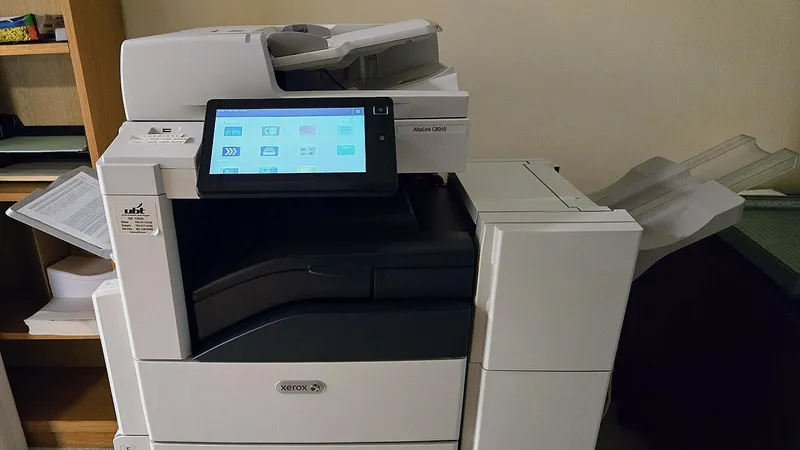
One line worth being clear about: I handle the network and the computer side of printing. Mechanical repair on a leased copier belongs with the vendor on that lease, and calling them is usually free under the contract. If I find that is where the fault is, I will say so rather than billing you to discover it.
There is no contract required. Hourly work runs at $100 per hour remote and $150 onsite during business hours, $150 remote and $225 onsite after hours, weekends and holidays, with a one-hour minimum, through my break/fix IT support. Remote help is available around the clock at the after-hours rate. Send the details from the contact page or call (214) 612-7080, and if you can, print that configuration page first.
Questions people ask
Why does the printer say offline when it is clearly switched on?
Offline is what Windows shows when it cannot reach the printer's address, and it is sticky: once set, Windows does not always clear it after the printer comes back. Check the Use Printer Offline setting in the print queue's Printer menu, then confirm the address in the port settings matches the address on the printer's own configuration page. A mismatch explains most of these.
How do I find our printer's IP address without a technician?
Print a configuration or network status page from the printer's own control panel. Every business printer can do this without a computer, usually under a Reports, Information or Network menu. The page lists the current IP address, the hardware address and which network it is joined to. Keep the printout: those three facts answer most printing questions before anyone connects remotely.
Should each computer print directly to the printer, or should we use a print server?
For an office under roughly twenty people, direct IP printing with a reserved address is usually simpler and has fewer things to break. A print server or cloud print service starts to pay off when you have many printers, many users, or a need to change drivers and queues centrally rather than visiting each desk. Either works, as long as you choose one.
Can you fix a printer problem remotely?
Usually. Address changes, port settings, spooler faults, drivers, queues and firewall rules are all remote work, which costs less per hour than an onsite visit. What needs hands is a jam that will not clear, a dead network port, a failed cable run, or a unit that no longer powers on. I start remotely and only come out when the evidence says the fault is physical.
Is it worth repairing an old office printer?
Compare the repair quote and the consumable cost against a replacement, and factor in how much staff time the current unit is costing. A workgroup printer that jams weekly is expensive even when nobody invoices you for it. On a leased copier, repair is normally covered and the vendor should be your first call rather than an IT bill.
Why did printing break for everyone after a power outage?
Almost always because the printer came back with a different IP address than it had before, while every computer kept sending jobs to the old one. Nothing is faulty, and the printer will insist it is connected. Update the port to the new address to print today, then set a DHCP reservation so the next outage cannot move it again.