
Our office internet is down, who do I call?
Check two things before calling anyone: whether it is one computer or the whole office, and what the modem lights show. If the modem has no internet light, it is the provider, so call them with your account number and ask about an area outage. If the modem is healthy but nobody can browse, it is your firewall, switch or Wi-Fi, and a Dallas IT call fixes it faster.
Answered by Anthony Omini, Cross River Tech, Dallas
Key takeaways
- Find out whether it is one computer or the whole office before you call anyone. That single answer sends you down two completely different paths.
- The modem's internet or online light is the dividing line: dark or blinking usually means the provider, solid usually means the problem is inside your walls.
- Restart in order and only once: modem, then firewall or router, then switch, waiting for each to come fully up before the next.
- When you call the provider, have the account number, the service address and the light pattern ready, and ask for a ticket number and whether there is an area outage.
- If an hour of downtime costs you real money, a cellular backup on a dual-WAN firewall is the cheapest insurance in small business IT.
The office internet is down. What do you check in the first five minutes?
Run this sequence before you call anyone. It takes about five minutes, needs no technical knowledge, and it answers the only question that matters at the start: is this the provider's problem or yours?
- Ask two other people. If one computer is offline and everyone else is fine, stop here. It is that computer or its cable, not the internet. Reboot it and check the network cable at both ends.
- Test a phone on office Wi-Fi. Turn cellular data off on your phone, connect to the office Wi-Fi and open a website. If the phone fails too, the problem is the network or the line, not the computers.
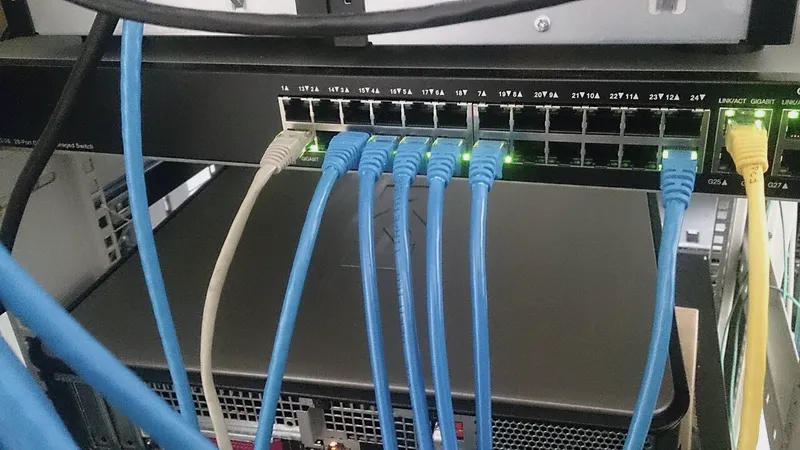
- Go and look at the equipment. Usually a closet, a shelf or a small rack. You are looking for the modem or ONT from the provider, the firewall or router, and the switch. Note which lights are solid green, blinking, amber or off. Do not unplug anything yet.
- Read the modem's internet light. Whatever it is called on your box, there is a light that says the line itself is up. Dark or blinking is the provider's side. Solid is your side.
- Check for the obvious physical causes. A tripped power strip, a cleaner's vacuum plug, a cable pulled out of a port, a UPS beeping because its battery died overnight, water or heat in the closet.
- Restart in order, once. Power off the modem, wait one full minute, power it on and wait for its lights to settle. Only then restart the firewall or router, then the switch. Restarting everything at once is the most common reason a working restart looks like a failed one.
- Test again from a wired computer, not from Wi-Fi, so a Wi-Fi fault does not disguise a working line.
- Then call. The provider if the modem is dark, your IT support if the modem is happy and the office is not.
Write down the time it started and what you saw. If it happens again next week, that note is the difference between guessing and finding the cause.
How do you tell whether it is the internet provider or your equipment?
By where the failure stops. The line from the street terminates at the provider's modem or ONT, and everything past it is yours: firewall, switch, access points, cabling, computers. Match your symptom to this table and you will know who to call within a minute or two.
| What you see | Most likely cause | Who to call |
|---|---|---|
| Modem internet light off or blinking, everything else normal | Circuit down, cut fiber, area outage, billing suspension | Internet provider |
| Modem solid, firewall shows no WAN address | Handoff problem, provider changed something, dead firewall port | Provider first, then IT |
| Modem and firewall look normal, nothing loads anywhere | DNS failure, firewall license or filtering fault, blocked at the gateway | IT support |
| Wired computers work, Wi-Fi does not | Access point, PoE switch port, or a Wi-Fi controller problem | IT support |
| Some websites work, others do not | DNS, content filtering, or a partial provider routing problem | IT support, then provider |
| One computer offline, others fine | Cable, port, network adapter, or that machine's settings | IT support, or try another cable and port |
| Whole office slow rather than down | Saturated line, a large backup or upload running, a faulty device flooding the network | IT support |
| Everything died the moment the power flickered | Equipment did not come back cleanly, or a UPS failed | Restart in order, then IT support |
One caveat worth knowing. If your phones, your files and your line-of-business software all live in the cloud, an internet outage feels exactly like a total systems failure, and people will tell you the server is down when there is no server at all. Start with the line before anyone starts diagnosing anything else.
What do the lights on the modem, firewall and switch actually mean?
Every manufacturer labels them differently, but the pattern is consistent enough to be useful. You are reading three boxes in order: the provider's box, your firewall or router, and your switch.
| Device | Light | What it tells you |
|---|---|---|
| Modem or ONT | Power | Off means power, outlet or power brick. Check before anything else. |
| Modem or ONT | DSL, Cable, LOS or PON | Solid means the physical line is present. Blinking or red means the line to the street is the problem. |
| Modem or ONT | Internet or Online | Solid means the provider is delivering service. Off or blinking is a provider call. |
| Modem or ONT | Ethernet or LAN | Lit means the cable to your firewall is connected and negotiating. |
| Firewall or router | WAN or Internet port | Dark means no link to the modem: bad cable, wrong port, or the modem is down. |
| Firewall or router | Status or system | Amber, red or rapid blinking often means a failed boot, overheating or a configuration fault. |
| Switch | Port lights | Each lit port is a live device. A port that is dark where something is plugged in means a dead cable, port or device. |
| Switch | All ports blinking in unison | Classic sign of a network loop, usually a cable plugged into two wall ports. Unplug recent additions. |
| Access point | Status ring or LED | Off usually means no power over the network cable, so look at the switch port rather than the access point. |
Take a photo of the equipment with everything working normally and keep it in a shared folder. On a bad morning, comparing today's lights against a photo of a healthy day beats trying to remember what normal looked like.
What should you tell the internet provider when you call?
Being organized on that call is worth an hour. Support lines run scripts, and the fastest way through a script is to have already done the steps it asks for. Have this ready before you dial.
- The account number and the service address, exactly as it appears on the bill. Service address, not billing address, if they differ.
- The circuit ID if you have a business fiber or dedicated line. It is on the installation paperwork and it routes you to the right desk immediately.
- Who is authorised on the account. Many providers will not talk to a caller who is not named on it, which is a problem worth solving on a calm day.
- What you observed: the light pattern, when it started, whether it is intermittent or dead, and that you have already power cycled the modem once.
- The question that matters first: is there a known outage at this address or in this area? Ask it early, because it ends the call.
- Ask them to check the signal to the modem from their side, and to tell you whether they can see the device at all.
- Get a ticket number and an escalation path, and ask what the next update time is rather than accepting "someone will call".
- Ask what a truck roll would involve and whether there is a charge if the fault turns out to be inside the building.
If the provider insists the line is fine and your office is still down, the handoff between their modem and your firewall is the usual suspect. That is the point where IT and the provider have to talk to each other, and where having someone who can speak both languages saves the afternoon. I do that call on behalf of clients as part of managed IT support, because it is faster than relaying messages through an office manager.
When is the outage your own network rather than the internet?
More often than people expect. The provider is an easy thing to blame, and roughly as often the fault sits in equipment you own. These are the causes I find most often in Dallas offices, in rough order of frequency.
- A network loop. Someone plugs a patch cable into two wall jacks, or a small desk switch back into itself. The network floods and everything stops. All the switch lights blinking together at the same rhythm is the tell.
- The firewall. A consumer router doing a business's work, an overheating unit in a closed closet, a lapsed filtering subscription that puts the device into a blocking state, or firmware that failed halfway through an update.
- DNS. If the service that turns names into addresses stops answering, every site fails to load while the connection itself is perfectly fine. It looks exactly like an outage and is not one.
- DHCP exhaustion. The pool of addresses runs out, usually because guest phones have taken them all, and new devices get no address at all while existing ones keep working. Half the office is fine, half is dead.
- A failing switch or power supply, especially a fanless switch in a warm closet through a North Texas summer.
- One bad cable in the wrong place. A cable between the switch and the firewall that has been squeezed by a rack door for months finally gives up.
- Power events. After a storm, equipment comes back in the wrong order and the firewall never gets a valid address from the modem.
If the symptom is wireless rather than wired, the causes are different again and mostly do not involve the internet at all. That is covered in why office Wi-Fi keeps dropping. If the internet is confirmed fine and the shared files are still unreachable, you are looking at a different problem entirely, and emergency support when the server is down is the right sequence to follow.
How do you keep the office working while the internet is down?
Decide in advance, because improvising during an outage wastes the first hour. Three moves cover most small offices.
Tether the people who must keep working. A phone hotspot will carry email and a cloud application for two or three people comfortably. It will not carry twenty people or a video meeting for the whole office. Agree beforehand who gets priority: whoever is with a client, whoever is on a filing deadline, whoever answers the phone.
Move the phones. If your phone system is cloud-based, the calls are still arriving, they just cannot reach the desk handsets. Most systems can forward the main number to a mobile from a web portal or an app, and that portal is reachable from a phone on cellular data. Know where that setting is before you need it.
Tell people what is happening. A short message on the way in the door and one to any client expecting something today buys you enormous goodwill. Silence is what makes an outage feel like incompetence.
What you should not do is start unplugging and reconfiguring equipment in the hope something helps. Changes made during a panic are the reason an outage that would have ended when the provider restored service instead lasts another day while somebody works out what was altered. Restart in order, once, then stop and call.
What failover options exist, and are they worth it?
The question is not technical, it is arithmetic. Work out roughly what an hour with no internet costs you in lost billable time, missed calls or idle staff, and compare it to a modest monthly line item. For a professional office where nobody can work without the cloud, the answer is usually obvious.
| Option | How it works | Honest assessment |
|---|---|---|
| Phone hotspot | Staff tether individually when needed | Free and already in your pocket. Fine for two or three people, useless for a full office and no help with desk phones. |
| Cellular failover on a dual-WAN firewall | A modem with a data plan sits in a second WAN port; the firewall switches over automatically | The best value for most small offices. Modest monthly cost, switches in seconds, and everyone keeps working at reduced speed. |
| Second broadband circuit from a different provider | Cable plus fiber, or two fiber providers, into a dual-WAN firewall | Full speed on backup, but you pay a second monthly bill and both lines may share the same street infrastructure. Ask before you assume they are independent. |
| Business fiber with an availability commitment | A dedicated circuit with a contractual repair target | Meaningfully better repair priority than a residential-grade product, at a business price and with a longer install lead time. |
| Cloud-first design | No dependency on an office server, so staff can work from home during an outage | Not failover, but it turns a building-level outage into an inconvenience rather than a stoppage. |
Two things to check before buying anything. First, does your current firewall even support a second WAN connection? Many small-business models do; most consumer routers do not. Second, does the failover switch back automatically, and has anyone ever tested it? An untested backup line is a line that will not be there. Test it twice a year by unplugging the primary during a quiet hour.
If you are choosing internet for a new suite rather than fixing an existing one, the sizing and lead-time questions are covered in choosing business internet for a Dallas office and in getting internet into a new office.
How do you stop the next outage from turning into a guessing game?
Most of the time lost in an outage is not repair time, it is discovery time: finding the account number, working out which box is the modem, learning that nobody is named on the ISP account, discovering the firewall password left with the previous IT provider. Fix those on a quiet day and the next outage is an hour shorter.
- A one-page network sheet in a shared folder and printed in the closet: provider name, account number, circuit ID, support line, who is authorised on the account, what each box is, and the order to restart them in.
- Labels on the equipment. Physical labels on the modem, firewall, switch and every patch cable between them.
- Admin credentials the business owns, in a password manager, for the firewall, the switch and the ISP portal. If a former provider still holds those, that is its own emergency.
- A UPS on the network equipment, sized to ride out the brief flickers that are common in North Texas storm season, so the whole office does not go down for a two-second event.
- Monitoring that tells you first. A monitored circuit alerts your IT support when it drops, including at three in the morning, which means the problem is often already reported by the time anyone arrives.
- Two names on the ISP account, so a support call does not fail because the one authorised person is on holiday.
Those items are part of ongoing support rather than a project, and they are the sort of quiet groundwork that only shows its value on a bad morning.
Who do you call for an internet outage at a Dallas office?
Call your provider if the modem says the line is down, and call me for anything past that. My name is Anthony Omini and I own Cross River Tech, a small IT company in Dallas; you deal with me directly, and my team handles the routine monitoring behind me. If you are not sure which side of the line the problem is on, call me first at (214) 612-7080 and I will work it out with you on the phone rather than sending you to sit in a queue for an hour.
Most of this work is remote. If any device in the building still has a connection, or if someone can tether a laptop to a phone, I can reach the firewall and the switch and see what they see. When it needs hands, I come to the office. I cover Dallas–Fort Worth onsite and support businesses remotely anywhere in Texas.
Hourly work has no contract and published rates: $100 per hour remote and $150 onsite during business hours, Monday to Friday 8 AM to 5 PM Central, and $150 remote or $225 onsite after hours, weekends and holidays, with a one-hour minimum. Those rates and what falls under them are set out on the hourly IT support page.
If you would rather not be reading this during an outage next time, get in touch and I will document your line, label the equipment, put the account details somewhere findable and tell you honestly whether a cellular backup is worth it for your office.
Questions people ask
How do I know if the internet outage is my provider's fault?
Look at the modem. If the light labeled internet, online or PON is off or blinking while the power light is solid, the fault is on the provider's side and there is nothing your IT support can do about the line itself. If that light is solid green and the office still cannot browse, the problem is in your firewall, switch, Wi-Fi or DNS.
Should I reboot everything when the internet goes down?
Reboot in order and only once. Power off the modem, wait a full minute, power it back on and let its lights settle completely. Then restart the firewall or router, then the switch. Restarting all three together is why a correct restart often appears not to work. If two rounds change nothing, stop and call rather than continuing.
What information does the internet provider need from me?
The account number and service address from the bill, the circuit ID if you have a business line, the name of an authorised contact, the light pattern on the modem, when it started, and confirmation that you have already power cycled once. Ask whether there is a known area outage, then get a ticket number and a next update time.
Is a backup internet connection worth it for a small office?
If an hour offline costs you real billable time or missed calls, yes. Cellular failover on a dual-WAN firewall is the usual answer for a small office: a modest monthly data plan, automatic switchover in seconds, and everyone keeps working at reduced speed. A second wired circuit is faster but costs more and may share the same street infrastructure.
Why does the whole office stop working when only the internet is down?
Because most small offices now keep everything in the cloud. Email, files, the phone system and the main business application all live outside the building, so losing the line looks identical to every system failing at once. It also means the fix is one thing, not many, which is better news than it feels like at the time.
Can you fix an internet problem remotely?
Often, yes, as long as one device in the building still has a path to the internet, including a laptop tethered to a phone. From there I can reach the firewall and switch, check the line, restart services and read the logs. A cut fiber, a dead switch or a failed modem needs hands on the equipment, and then I come to the office.