
Why does the wifi keep disconnecting at work?
Office Wi-Fi usually drops for one of six reasons: a consumer router doing a business job, one access point covering too much floor space, channel interference from neighboring suites, a bad cable or a failing PoE switch port, DHCP running out of addresses, or an internet line that is flapping underneath it. Work out whether it is one device or everyone first, because that answer alone eliminates half the list.
Answered by Anthony Omini, Cross River Tech, Dallas
Key takeaways
- Answer one question first: is it one user, one area of the office, or everybody at once? That single fact removes most of the possible causes.
- If the wired computers are fine and only Wi-Fi drops, the internet line is not your problem and calling the ISP wastes an afternoon.
- A consumer router from an electronics store is the most common cause I find in small Dallas offices, followed by one access point being asked to cover a whole suite.
- Rebooting fixes the symptom for an hour. Channel planning, proper access-point placement, a real switch and DHCP sized for your device count fix it for good.
- Bring the phone and laptop that drop most to the test. Some Wi-Fi problems live in one device driver, not in the network.
Our office wifi keeps dropping: what should you check first?
Run these checks in order before anyone reboots anything. Each one narrows the field, and doing them in this sequence means you are never guessing twice.
- Ask who is affected. One user, one corner of the office, or everybody. Walk around and ask rather than assuming. This is the single most useful piece of information and it takes two minutes to collect.
- Check a wired computer. Find any desktop plugged in with an Ethernet cable and load a website. If wired works while Wi-Fi drops, the problem is the wireless side and the internet line is fine.
- Check the same laptop in two places. Take the machine that drops most and use it next to the access point, then back at its desk. If it holds a connection next to the access point, you have a coverage problem, not a hardware fault.
- Check a phone on cellular data. If the phone is happy on cellular and miserable on the office Wi-Fi in the same spot, that confirms the wireless side again.
- Look at the access points and switch. Note which lights are solid, which are blinking, and whether anything is warm to the touch or sitting inside a closed cabinet.
- Count the devices. Laptops, phones, tablets, printers, cameras, thermostats, guest phones. If that number is anywhere near two hundred and your router is a consumer box, note it. It matters later.
- Write down when it drops. Every morning at nine, only during video calls, only in one conference room, or continuously. Timing points at a cause faster than any tool.
- Only now, reboot in order: modem, then firewall or router, then switch, then access points, waiting for each to come fully up. Rebooting everything at once teaches you nothing.
If step two showed that wired connections are also dropping, this is not really a Wi-Fi problem at all, and the right sequence is the one in is the office internet down, or is it your network instead.
How do you tell the Wi-Fi apart from the network and the internet?
Three different things fail in ways that feel identical from a desk chair, and telling them apart takes about five minutes.
The Wi-Fi is the radio link between your laptop and an access point. When it fails, the Wi-Fi icon shows a warning or drops to no bars, and the problem follows the person around the building. Wired machines are unaffected.
The network is the switching and addressing behind it: the switch, the cabling, the router handing out IP addresses. When it fails, both wired and wireless devices lose access at the same time, but you can often still reach the printer or the server on the local network while the internet is gone.
The internet is the circuit from your building out to the provider. When it fails, everything local still talks to everything local, and only the outside world disappears. The firewall or modem usually shows it clearly on a status light or a login page.
Here is the quick version anyone in the office can run. Open a browser and go to the router or firewall address, usually printed on a label. If that page loads instantly, your local network is alive. Then load a well-known website. If the local page loads and the public one does not, it is the internet. If neither loads on Wi-Fi but both load from a wired desk, it is the Wi-Fi.
Keeping that distinction straight saves real money. I have watched offices spend two weeks arguing with a provider about a circuit that was never the problem while a failing access point sat above the ceiling tile.
Is a consumer router the reason the office Wi-Fi keeps dropping?
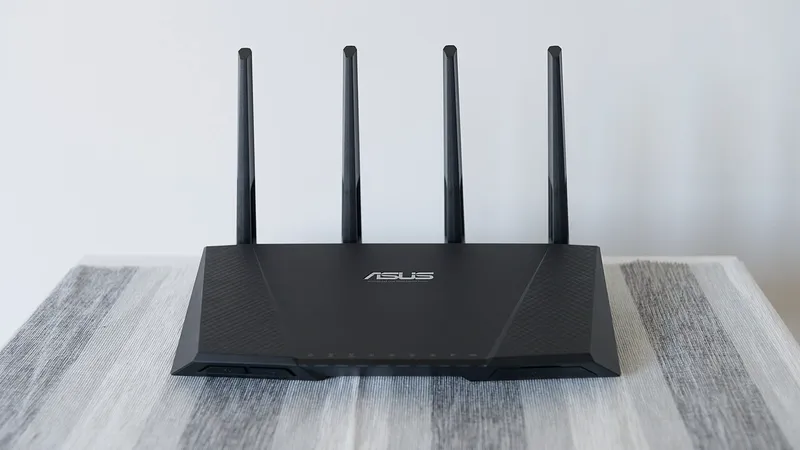
In a small business, more often than not, yes. The most common cause I find in Dallas offices is a home router from an electronics store being asked to serve fifteen or thirty people.
A consumer router is a router, a firewall, a switch and an access point in one plastic shell, sized for a family. The radio is designed for a handful of devices in a house with walls it can shout through. The processor is sized for streaming video, not for thirty people on video calls, a cloud accounting package, a document management system and a VoIP phone system all at once. When it runs out of capacity it does not report an error. It just starts dropping clients, and dropping the ones furthest away first.
The tells are consistent. Everything works fine at eight in the morning and falls apart by ten. It works with five people in the office and not with twenty. Rebooting it helps for an hour or two. The device is warm, tucked behind a monitor or inside a cabinet, and nobody knows the admin password.
The fix is to stop asking one box to do four jobs. In a business, those roles are separated: a proper firewall at the edge, a managed switch for the wired ports, and one or more ceiling-mounted access points powered over the same Ethernet cable that carries their data. That separation also means a failure tells you where it is instead of taking everything down together.
This is a normal upgrade rather than a big project, and it is what I set up in a new suite as part of data cabling and IT room setup, or retrofit into an existing office in an evening so nobody loses a working day.
How much of an office can one access point actually cover?
Far less than the box promises. A single business access point comfortably covers an open area of a few thousand square feet with a clear line of sight. Put walls, glass, metal studs, filing cabinets and a kitchen in the way, and the usable area shrinks fast.
Coverage is also not the same as capacity. A laptop at the far edge of the range will show one or two bars and still connect, but it does so at a very low data rate, and a slow client holds the airtime that everyone else is waiting for. One user working from the far corner can measurably slow the whole floor. That is why offices sometimes get worse as they get busier even though nothing changed.
The symptoms of too few access points are recognizable. Wi-Fi is fine near the equipment closet and unusable in the back offices or the conference room. Calls drop when people walk from one end of the suite to the other. The break room is a dead zone. Someone has already tried a range extender from a big-box store, which halves the throughput and adds a second network name people keep connecting to by accident.
The fix is more access points, each running at lower power, placed so their coverage overlaps a little and hands devices off cleanly as people move. Ceiling mounting matters: an access point on a shelf behind a monitor is radiating into furniture. Cabling matters too, because each one needs its own run back to the switch. I go through how that placement is planned in office Wi-Fi access point installation.
Could another business in the building be interfering with your Wi-Fi?
Yes, and in a shared office building it is one of the likeliest causes of drops that come and go for no visible reason. Wi-Fi is unlicensed radio. Your neighbors' networks and yours are shouting in the same space.
The 2.4 GHz band is the worst of it. It has only three channels that do not overlap, and it is shared with Bluetooth, wireless presentation clickers, some security cameras, cordless headsets and microwave ovens. In a multi-tenant building off Central Expressway or in a Design District suite with three businesses on a floor, that band is usually saturated. Devices that cling to 2.4 GHz will drop repeatedly and there is nothing you can do to the air itself.
The 5 GHz band has far more room, shorter range and does not travel through walls as well, which in an office is an advantage rather than a problem. Some of its channels are shared with weather and aviation radar, and an access point that detects radar is required to move channels immediately, which shows up to users as a brief simultaneous drop for everyone on that radio. That specific pattern, everybody dropping at once for a few seconds and then recovering, is worth mentioning to whoever looks at it.
The fixes are unglamorous and effective: scan what is actually in the air, set fixed non-overlapping channels rather than leaving everything on automatic, reduce transmit power so your access points stop competing with each other, steer capable devices to 5 GHz, and avoid the radar-shared channels if the pattern above matches. None of that requires new hardware if the access points are business-grade.
What if it is the cable, the switch port or the power?
An access point is only as reliable as the single cable feeding it, and that cable carries both its data and its power. When that link is marginal, the access point reboots quietly and everyone connected to it drops.
Marginal cabling is common in offices where somebody ran a length of cable through a ceiling in a hurry. A run that is too long, terminated badly, kinked over a beam, or routed alongside fluorescent lighting will pass a casual test and fail under load. The access point will show intermittent link, or it will negotiate down to a slower speed, and the drops will correlate with nothing you can see.
Power over Ethernet adds a second failure mode. If the switch is delivering power to more devices than its power budget allows, it starts shedding load, and the device it drops is often the one furthest down the list. Add a couple of cameras and a desk phone to an old switch and a perfectly good access point starts rebooting every afternoon. A switch port itself can also simply die.
Diagnosing this properly means testing the cable run with a real tester rather than a link light, checking the switch for port errors and for the total power draw against its budget, and moving the access point to a known-good port to see whether the fault follows the device or stays with the port. That is hands-on work, which is one of the cases where an onsite visit beats anything I can do remotely.
Can an office run out of IP addresses?
Yes, and when it does the symptom looks exactly like broken Wi-Fi. Your router hands out addresses from a pool, and that pool is usually much smaller than people assume.
A default consumer router often hands out somewhere around fifty to a hundred addresses and holds each one for a day after the device disconnects. Now count everything that asks for one in a modern office: every laptop, every phone in every pocket, tablets, printers, cameras, the thermostat, the TV in the conference room, and every visitor phone that has ever joined the guest network. A twenty-person office can easily consume more than a hundred addresses across a week. When the pool is exhausted, new devices simply cannot join, and existing ones fail when their lease comes up for renewal. To the user this reads as "the Wi-Fi is broken again".
The tell is that it gets worse through the week and clears up after a weekend or a reboot, because leases expire while the office is empty. Another tell is a device showing an address starting with 169.254, which means it asked and nobody answered.
The fix is to size the pool for the real device count, shorten the lease time on the guest network so visitor addresses come back the same day, and put guests on their own separate network anyway so they are not competing with staff or seeing your printers and servers. That last change is a security improvement as much as a capacity one.
Which symptom points at which cause?
Match what people are describing to the row that fits. This is the table I work through mentally on the phone before I connect to anything.
| What people report | Likely cause | What actually fixes it |
|---|---|---|
| One laptop drops, everyone else is fine | Wireless adapter driver, power-saving setting, or a failing card | Update the driver, disable adapter power saving, test with a USB adapter |
| Fine near the closet, unusable in the back offices | Too few access points, or one placed badly | Add access points, mount them in the ceiling, lower transmit power |
| Good early, terrible by mid-morning | Consumer router out of capacity, or an oversubscribed radio | Separate firewall, switch and access points; add capacity where people sit |
| Everyone on one access point drops for a few seconds at random | Radar detection forcing a channel change, or the access point rebooting | Avoid radar-shared channels, check the cable run and the PoE budget |
| Drops get worse through the week, fine on Monday | DHCP pool exhaustion, leases not expiring fast enough | Enlarge the pool, shorten guest leases, split guests onto their own network |
| Wired desks drop at the same time as Wi-Fi | Switch, firewall or internet circuit, not the wireless | Check the firewall and modem status, then call the provider with facts |
| Only video calls break up, browsing is fine | Airtime contention or upload saturation on the internet line | Traffic priority for voice and video, then look at the circuit size |
| Two network names with similar spellings appear | A range extender or an unmanaged second router someone added | Remove it and replace the coverage with a properly placed access point |
If none of those rows matches what you are seeing, the pattern is worth capturing over a day or two before anyone buys hardware. Guessing at Wi-Fi is expensive.
Who fixes office wifi problems in Dallas?
I do. My name is Anthony Omini and I own Cross River Tech, a small managed IT company based in Dallas, with over fifteen years of IT experience across many industries and global organizations, and MCSA and CCNA listed on my LinkedIn. Wi-Fi that drops is a normal week for me. You deal with me directly, and my team handles the routine monitoring behind me.
A typical job goes like this. I start remotely, because a lot of this can be seen without driving anywhere: what the router or firewall is doing, how the DHCP pool looks, what the access points report, whether the internet circuit is clean. If the answer is in the air or in the cabling, I come out, walk the space, check the channels in use in your building, test the runs feeding each access point, and then tell you plainly whether this is a configuration change or a hardware change. Sometimes it is a free fix. Sometimes it is one access point and an afternoon. Sometimes the honest answer is that a consumer router has to go.
You do not need a contract. This runs through my hourly IT support and break/fix service at $100 per hour remote and $150 onsite during business hours, $150 remote and $225 onsite after hours, weekends and holidays, with a one-hour minimum. Remote support is available around the clock at the after-hours rate, which matters when the drops only happen during a busy afternoon. If you would rather this was simply watched and maintained, network equipment is part of what I look after under managed IT services, billed per user or per device with no annual lock-in.
Clinical and professional offices get their own version of this problem, because a dropped connection there interrupts a patient or a client rather than a spreadsheet. That case is covered in why your dental office network keeps going down. For anything else, tell me what you are seeing through the contact page or call (214) 612-7080.
Questions people ask
Why does the Wi-Fi work in the morning and get worse all day?
That pattern almost always means capacity rather than a fault. More people arrive, more devices join, more video calls start, and a router or access point that was comfortable at eight is oversubscribed by ten. A consumer router is the usual culprit. The other common cause is a DHCP pool filling up as devices come and go through the day.
Will a Wi-Fi extender fix our dead zone?
It will make the dead zone slightly less dead and make everything else worse. An extender repeats traffic over the same radio, roughly halving throughput for everyone using it, and it usually creates a second network name that devices cling to long after they should have moved. In an office, run a cable and add a real access point instead.
Is it worth calling our internet provider about Wi-Fi drops?
Only after you have checked a wired computer. If wired connections are stable while Wi-Fi drops, the circuit is fine and the provider cannot help you. If wired and wireless both drop together, then it is worth calling, and go in with the times it happened and what the modem lights were doing so the conversation starts with facts.
How many access points does a small office need?
It depends on the floor plan more than the headcount. An open suite of a few thousand square feet may work with one well-placed unit. The same square footage split into private offices with metal studs and glass usually needs two or three. Conference rooms and back corners are where offices most often come up short.
Should visitors be on the same Wi-Fi as staff?
No. A separate guest network keeps visitor devices away from your printers, servers and shared drives, and it lets you give guest addresses a short lease so they do not consume your address pool for a day after someone leaves. It is a small configuration change with both a security and a reliability benefit.
Can you fix Wi-Fi problems without coming to the office?
Often, yes. Configuration, channel settings, DHCP sizing, firmware and firewall problems are all remote work, and remote time costs less than onsite. What needs hands is anything physical: testing a cable run, replacing an access point, moving one to a better spot, or checking a switch port. I start remotely and come out only when the evidence says the problem is physical.